This website uses Cookies. Click Accept to agree to our website's cookie use as described in our Privacy Policy. Click Preferences to customize your cookie settings.
Troubleshooting
Articles about how to solve the most common problems
Turn on suggestions
Auto-suggest helps you quickly narrow down your search results by suggesting possible matches as you type.
- Community Home
- Platform
- Troubleshooting
- How to perform a click event using Javascript on browser clickpath synthetic monitors
Options
- Subscribe to RSS Feed
- Mark as New
- Mark as Read
- Printer Friendly Page

 Mareeswaran
Dynatrace Advisor
Options
- Mark as New
- Subscribe to RSS Feed
- Permalink
on
01 May 2024
12:00 PM
- edited on
08 Jun 2026
11:40 AM
by
HannahM
Summary
When a recorded click fails in a Dynatrace Synthetic Browser Monitor, you can use a JavaScript event to manually dispatch the required pointer and mouse events (
pointerdown, pointerup, mouseup, click) so the application processes the interaction correctly. This approach is commonly required for modern web applications that rely on multiple event listeners or advanced front‑end frameworks.
- Summary
- Problem
- When JavaScript Click Events Are Required
- How to Identify Required Events (Chrome DevTools)
- Step 1 – Inspect the element
- Step 2 – Check event listeners
- JavaScript Example: Triggering Pointer and Mouse Events
- Step 3 – Copy the JavaScript selector
- Step 4 – Add a JavaScript Event to the Browser Clickpath
- Example Using Shadow DOM
- Common Pitfalls and Troubleshooting
- When to Use Trusted Events Instead
- Frequently Asked Questions
- What's Next
- Related reading
Problem
In some scenarios, a recorded click event in a Browser Clickpath Synthetic Monitor does not work during execution or playback.
This usually happens because the target application doesn't respond to a simple
.click() action, but instead expects a combination of pointer and mouse events to be fired in a specific order.
When JavaScript Click Events Are Required
You typically need a JavaScript click event when:
- The recorded click works during recording but fails during monitor execution
- The application relies on custom JavaScript event listeners
- The element reacts to pointer events, not just click events
- The application uses modern UI frameworks or Shadow DOM
In these cases, dispatching the required events manually ensures the application behaves as if a real user performed the action.
How to Identify Required Events (Chrome DevTools)
Before writing any JavaScript, verify which events the application expects.
Step 1 – Inspect the element
-
Open the application in Google Chrome
-
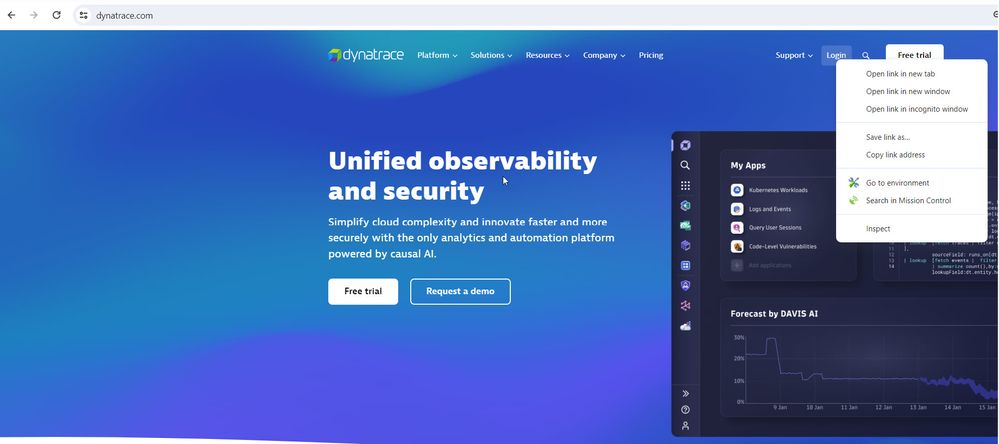
Right‑click the element you want to interact with
-
Select Inspect to open Chrome DevTools, which will open the developer tools
Step 2 – Check event listeners
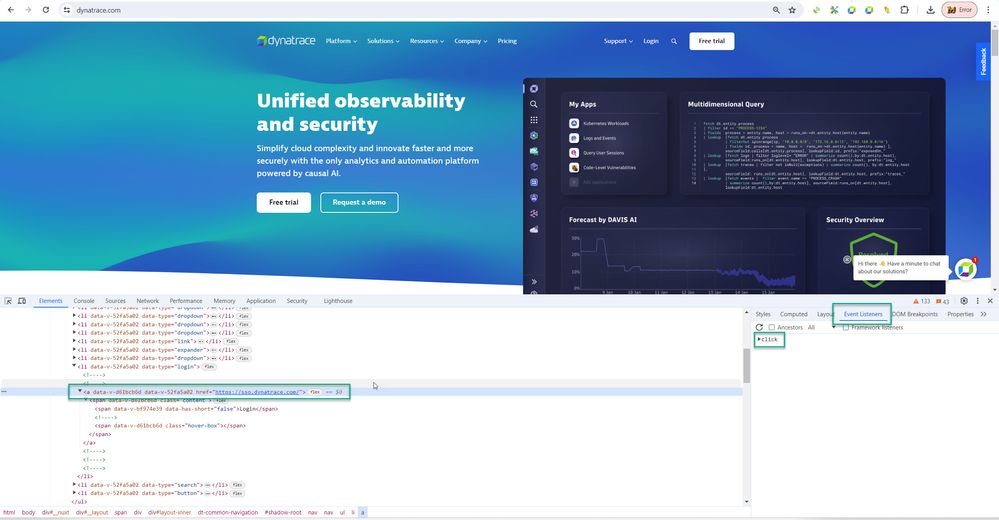
- In DevTools, select the element
- Open the Event Listeners tab
- Identify which events are registered (for example:
click,pointerdown,pointerup,mouseover)
These are the events you’ll need to dispatch manually.
JavaScript Example: Triggering Pointer and Mouse Events
The following example demonstrates how to dispatch multiple events to reliably simulate a real user click.
Step 3 – Copy the JavaScript selector
In Chrome DevTools:
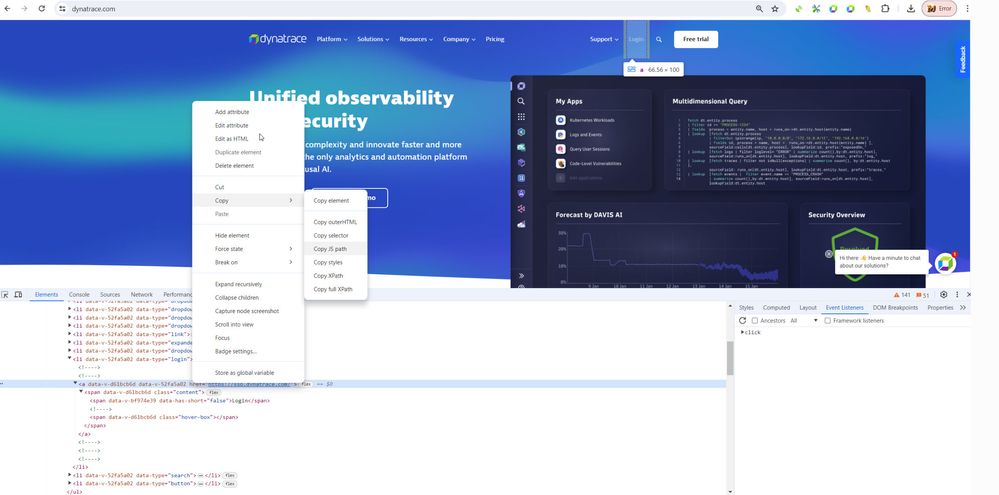
- Right‑click the element in the DOM tree
- Select Copy → Copy JS path
Step 4 – Add a JavaScript Event to the Browser Clickpath
Paste the following code into a JavaScript event in your Browser Clickpath Synthetic Monitor, and replace the selector with your own.

function triggerevent(element)
{

 var parameters1 = {    isTrusted: true,    pressure: 0.5,    type: "pointerdown",    bubbles: true,    cancelable: true,    cancelBubble: false  };
 var parameters2 = {    isTrusted: true,    bubbles: true,    cancelable: true,    cancelBubble: false  };

 var evt1 = new PointerEvent("pointerdown", parameters1);
 element.dispatchEvent(evt1);
 var evt2 = new PointerEvent("pointerup", parameters1);
 element.dispatchEvent(evt2);
 var evt3 = new MouseEvent("mouseup", parameters2);
 element.dispatchEvent(evt3);
 var evt4 = new MouseEvent("click", parameters2);
 element.dispatchEvent(evt4);

}

var element = document.querySelector("#layout-inner > dt-common-navigation").shadowRoot.querySelector("nav > nav > ul > li:nth-child(9) > a");
triggerevent(element);
Example Using Shadow DOM
⚠️ Note:
The example above accesses the element via
The example above accesses the element via
shadowRoot. This is required only if your application uses Shadow DOM.- If your application doesn't use Shadow DOM, remove the
.shadowRootportion and use a standardquerySelector()instead.
Common Pitfalls and Troubleshooting
If the click still does not work:
- Verify that the correct element is being selected
- Confirm the required event types in DevTools
- Ensure the element is visible and not covered by overlays
- Check whether the application requires trusted events
When to Use Trusted Events Instead
Some applications check whether an action was triggered by a real user using the
isTrusted property.In these cases, JavaScript‑dispatched events may still fail. If this happens, consider enabling Trusted Events in your Browser Clickpath configuration and using native click steps instead.
See How to interact with trusted events in a Browser Clickpath Monitor for details.
Frequently Asked Questions
Why doesn’t
Some applications listen for multiple pointer or mouse events, not just a click.
.click() work in Synthetic Browser Monitors?Some applications listen for multiple pointer or mouse events, not just a click.
When should I use JavaScript events instead of recorded clicks?
When recorded clicks fail during execution but work during recording.
When recorded clicks fail during execution but work during recording.
Is this approach supported by Dynatrace?
Yes. Browser Clickpath Synthetic Monitors support JavaScript events for advanced interaction scenarios.
Yes. Browser Clickpath Synthetic Monitors support JavaScript events for advanced interaction scenarios.
Should I always prefer Trusted Events?
Use Trusted Events when the application explicitly checks for real user interactions; otherwise, JavaScript events are often sufficient.
Use Trusted Events when the application explicitly checks for real user interactions; otherwise, JavaScript events are often sufficient.
What's Next
If the issue persists after trying JavaScript and trusted events, open a support chat or ticket and provide:
- A link to the affected monitor
- The selector and JavaScript used
- A reference to this article
Related reading
📖 Synthetic Troubleshooting Map
📖 How to interact with trusted events in a Browser Clickpath Monitor
📖 How to perform a right-click in a Browser Clickpath Synthetic Monitor
📖 How to inspect and add the shadow DOM elements into synthetic script events
Labels:
Comments

Hi @Mareeswaran , thank you for your suggestion. I have tried replacing all the CSS locators with DOM and it works during replay but is there anyway we could set up Dynatrace to capture the DOM locators by default (instead of CSS) while recording a flow?
Mareeswaran
Dynatrace Advisor
@shalnw Unfortunately, we don't have way to make the synthetic recorder to capture the DOM locators by default and we need to inspect & add the DOM locators manually.
Thanks @Mareeswaran , I have added the DOM locators/ events and the screenshots to my recording. The playback click path replays the expected flow and the screenshots are correct. But when I go to Analyse executions to view results, it shows just the website's homepage. Is this inconsistency expected for Shadow DOM events?
Mareeswaran
Dynatrace Advisor
@shalnw Yes. If the application uses the shadowDOM elements, Dynatrace Synthetic Recorder extension not supported for recording the shadowDOM elements. You can refer the community article for that How to inspect and add the shadow DOM elements into synthetic script events.

Hi
I tried out this JS script method and currently encountering the error "Playback error: Exception was thrown by the JavaScript code: Cannot read properties of null (reading 'shadowRoot')."

I'm not sure what I am missing here.
Thank you.
Mareeswaran
Dynatrace Advisor
Hi @kenyu216
I suspect that target window may be different one and that is the reason its unable to identify the selector. You can inspect the element and check if there is any iframe are available. If so, you need to use the relevant target window like ruxitWin[0].frames[0]

