This website uses Cookies. Click Accept to agree to our website's cookie use as described in our Privacy Policy. Click Preferences to customize your cookie settings.
Troubleshooting
Articles about how to solve the most common problems
Turn on suggestions
Auto-suggest helps you quickly narrow down your search results by suggesting possible matches as you type.
- Community Home
- Platform
- Troubleshooting
- How to check Synthetic Monitor Websocket errors in logs
Options
- Subscribe to RSS Feed
- Mark as New
- Mark as Read
- Printer Friendly Page

 a_barbera
Dynatrace Contributor
Options
- Mark as New
- Subscribe to RSS Feed
- Permalink
on
26 May 2023
11:34 AM
- edited on
11 Jun 2026
05:43 PM
by
HannahM
Summary
If your Dynatrace Synthetic Browser Monitor fails due to WebSocket connection issues, the error is not always visible in the UI.
This guide shows you how to:
- Locate the correct ActiveGate logs
- Identify WebSocket errors (e.g., status 1001)
- Use the VisitId to trace failures across logs
- Pinpoint the exact step where the failure occurred
- Summary
- Step 1 – Download Synthetic logs from ActiveGate
- Step 2 – Locate the browser log file
- Step 3 – Identify failed executions
- Step 4 – Extract the VisitId
- Step 5 – Correlate with VUP logs
- Step 6 – Identify the failing step
- Resolution
- What's Next
- Related reading
Step 1 – Download Synthetic logs from ActiveGate
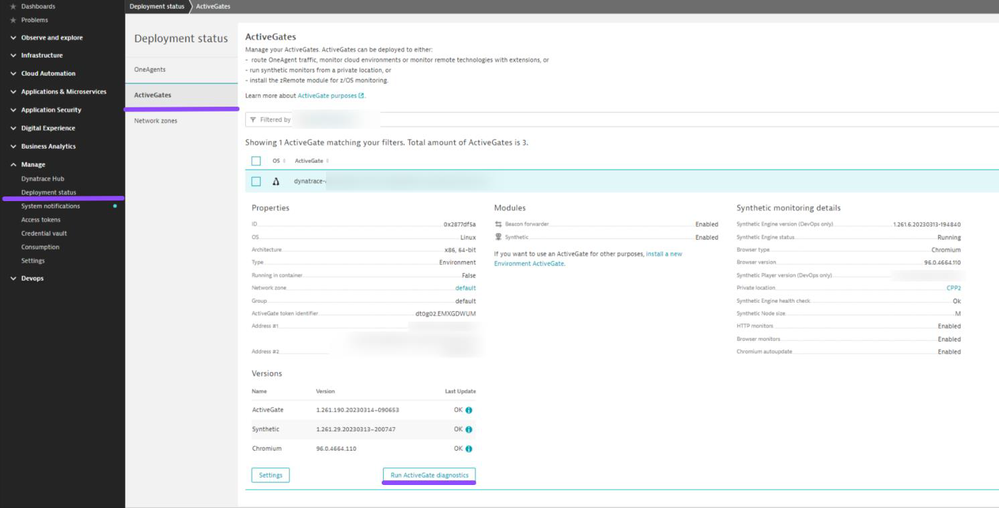
- Go to Deployment Status
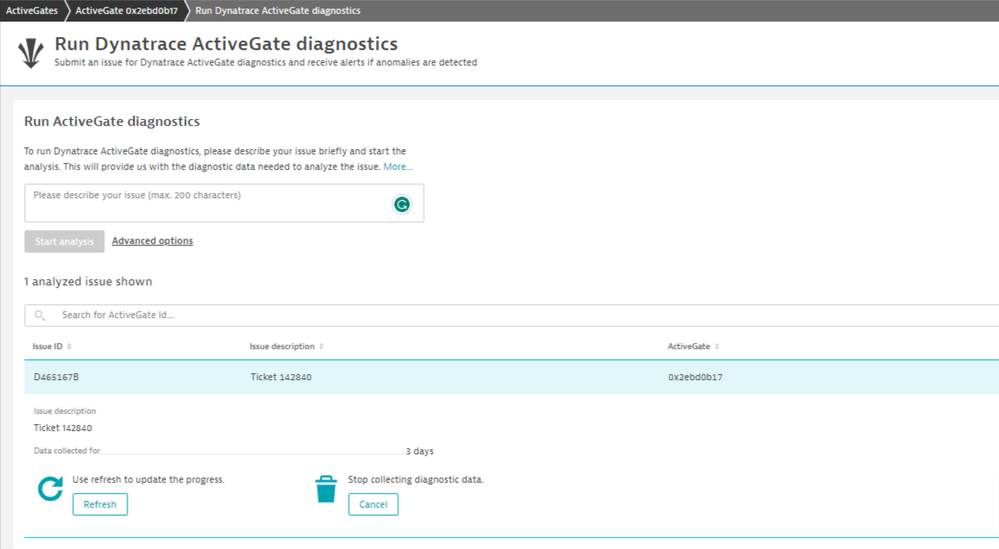
- Select Run ActiveGate diagnostics. This may take some time.
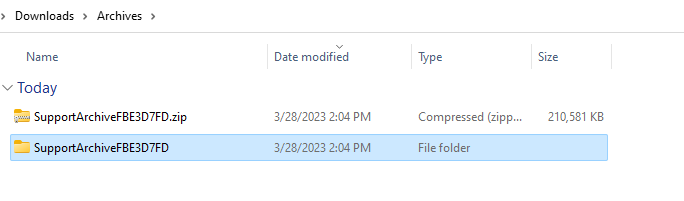
- Download the generated Support Archive
👉 This archive contains Synthetic execution logs, including browser-level logs. - Extract the archive locally
Step 2 – Locate the browser log file
Navigate to:
COLLECTOR/0x____/synthetic/vuc-logs/
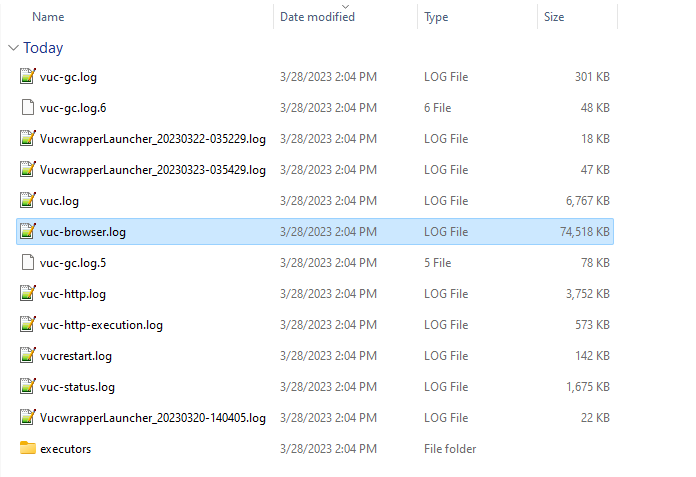
Open:
vuc-browser.log
This file contains browser execution details, including WebSocket activity
Step 3 – Identify failed executions
Search for:
TEST_ABORTED
This indicates a failed execution.
Example:
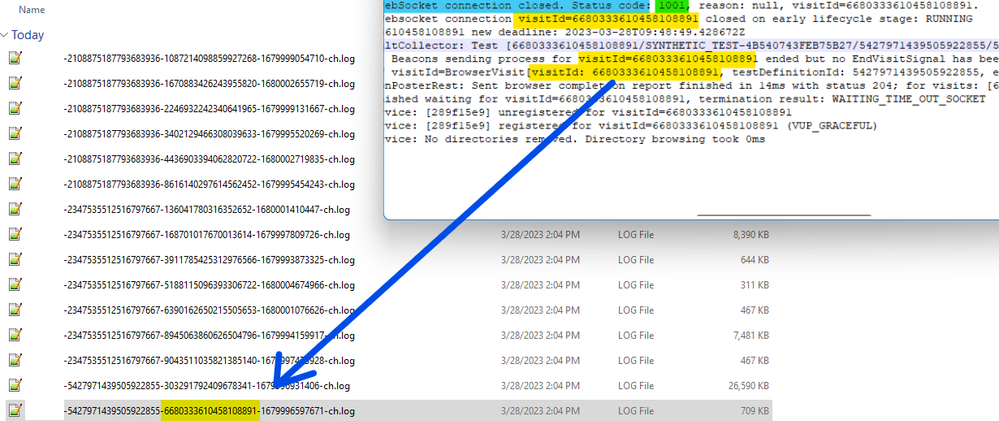
WebSocket connection is closed (Status 1001)
👉 This confirms a WebSocket-related failure.

Step 4 – Extract the VisitId
Within the same log entry, locate:
VisitId = <number>
Example:
6680333610458108891
The VisitId allows you to correlate logs across components.
Step 5 – Correlate with VUP logs
Recent executions
Navigate to:
COLLECTOR/0x____/synthetic/vup-logs/
Search for files containing the same VisitId.
👉 Only recent executions, the last hour or 2, are available in this archive. Later on, we will see how it is possible to check older executions.
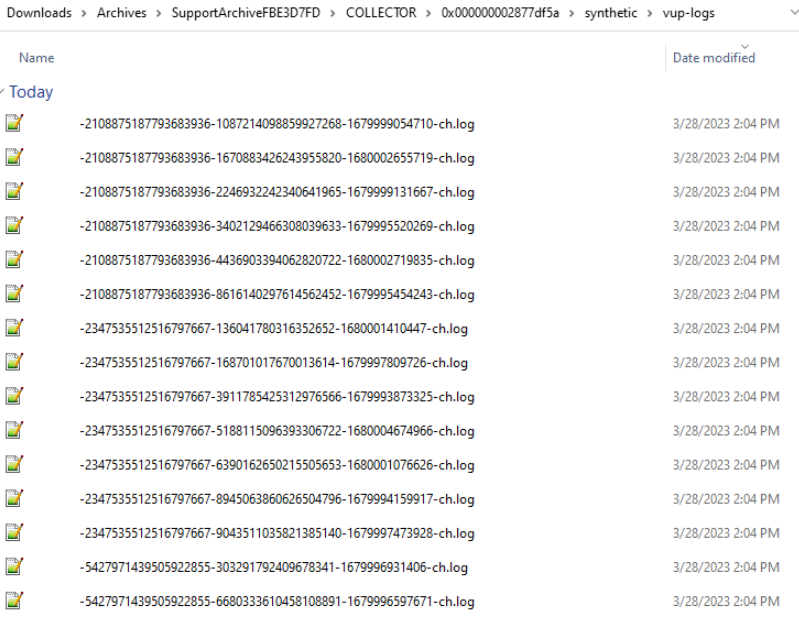
The number of the VisitId is in the middle of the file names.
Older executions
Navigate to:
COLLECTOR/0x____/synthetic/vup-archivedLogs/In this folder, we will see other folders named Dates and Hours:
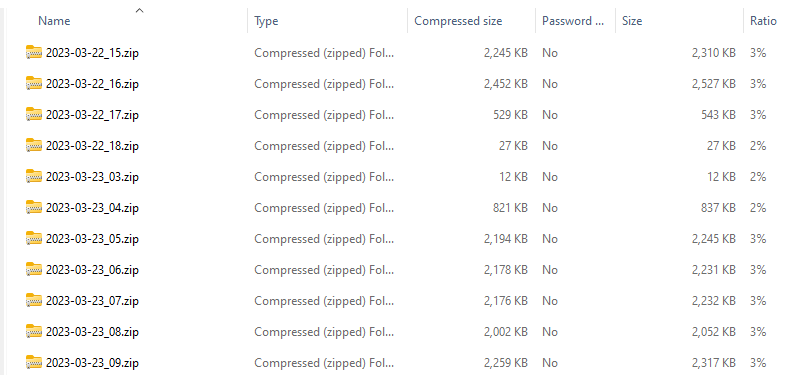
Open the file for the day and hour that the execution occurred.
Search for files containing the same VisitId.
👉 The time on the files uses the timezone the ActiveGate is using.
Step 6 – Identify the failing step
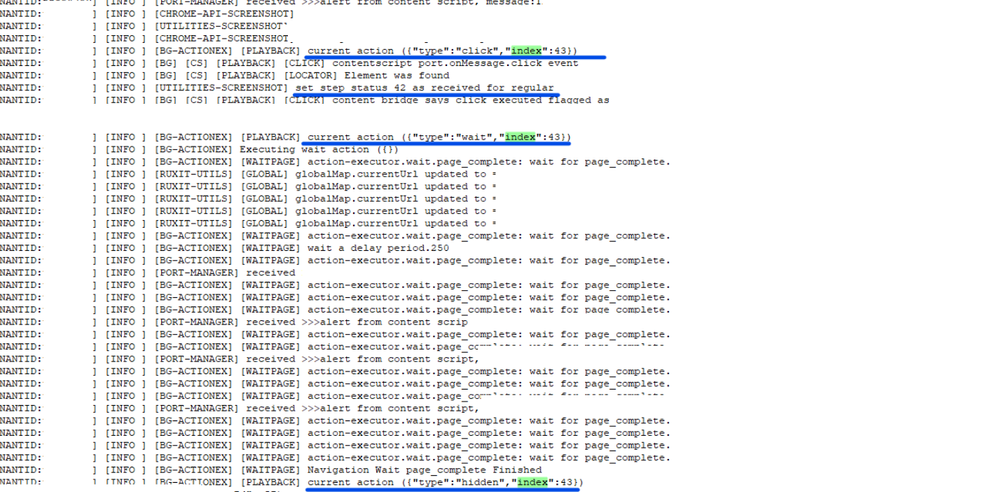
Inside the matching file, search for:
IndexStepType
These help identify:
- The last executed step
- Where the test stopped
Example:
- Failure between Step 42 → Step 43
→ Indicates where to investigate or adjust the monitor.
Resolution
In some cases, WebSocket-related failures are not caused by connectivity issues, but by how the Synthetic Browser Monitor handles timing between steps. Things you can try:
- Adjust the wait condition for the event. You can find the options here.
- For clicks, try using a java script event. See How to perform a click event using Javascript on browser clickpath synthetic monitors.
What's Next
If the issue persists after trying JavaScript and trusted events, open a support chat or ticket and provide:
- A link to the affected monitor
- The selector and JavaScript used
- A reference to this article
Related reading
📖 Synthetic Troubleshooting Map
📖 Browser Monitor Wait options
📖 Useful Synthetic ActiveGate logs
📖 Collect a Support Archive for Troubleshooting issues in Dynatrace
Comments