This website uses Cookies. Click Accept to agree to our website's cookie use as described in our Privacy Policy. Click Preferences to customize your cookie settings.
Troubleshooting
Articles about how to solve the most common problems
Turn on suggestions
Auto-suggest helps you quickly narrow down your search results by suggesting possible matches as you type.
- Community Home
- Platform
- Troubleshooting
- How to perform Location dropdown(auto complete Address) with help of JavaScript Event on browser click path synthetic monitor.
Options
- Subscribe to RSS Feed
- Mark as New
- Mark as Read
- Printer Friendly Page

 Mareeswaran
Dynatrace Advisor
Options
- Mark as New
- Subscribe to RSS Feed
- Permalink
on
12 Apr 2023
02:00 PM
- edited on
05 Mar 2026
03:45 PM
by
HannahM
Summary
If your web application uses autocomplete, for example, a location autocomplete field, like an address search box backed by Google Maps or similar), the standard synthetic recording may not reliably capture the interaction.
In these cases, you can use JavaScript events inside a browser clickpath monitor to:
- Type a value into the location search field.
- Trigger the autocomplete dropdown.
- Select a location from the dropdown using simulated key events.
Below is a step‑by‑step guide.
- Summary
- Steps to handle an autocomplete dropdown
- Locate the autocomplete input element in Chrome
- Copy the JS path (or a suitable selector) for the input
- JavaScript event 1 – Enter text and trigger the autocomplete dropdown
- JavaScript event 2 – Select the first location result from the dropdown
- What's Next
- Practical tips and troubleshooting
- Create a Support ticket/ chat
- Related reading
Steps to handle an autocomplete dropdown
Locate the autocomplete input element in Chrome
-
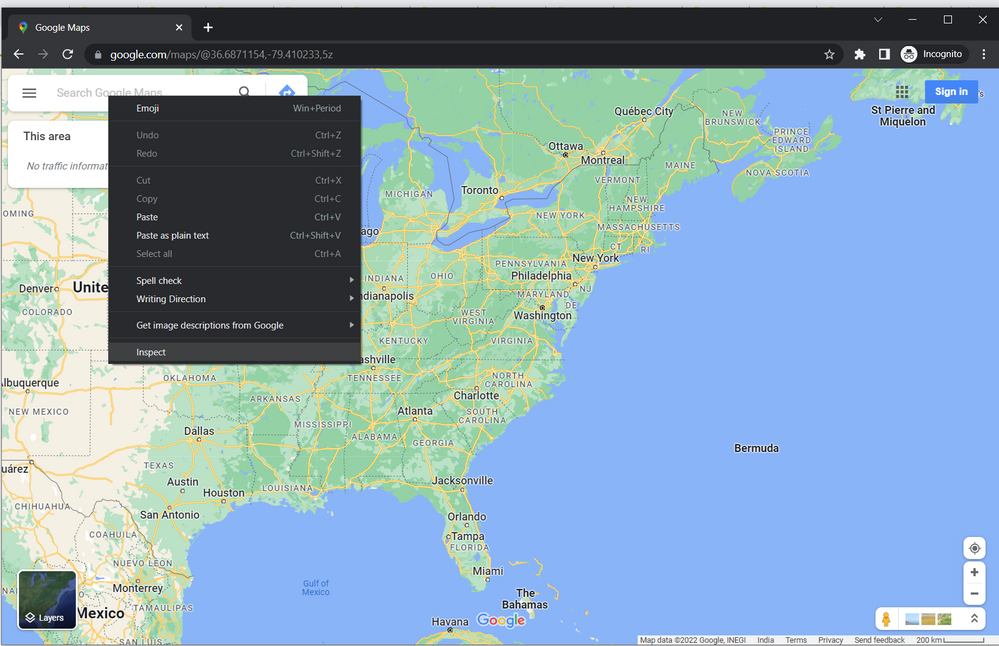
Open Chrome and navigate to the page that contains the location/address autocomplete field.
-
Right‑click on the input field you want the synthetic monitor to interact with.
- Select Inspect to open Chrome DevTools on that element.
Copy the JS path (or a suitable selector) for the input
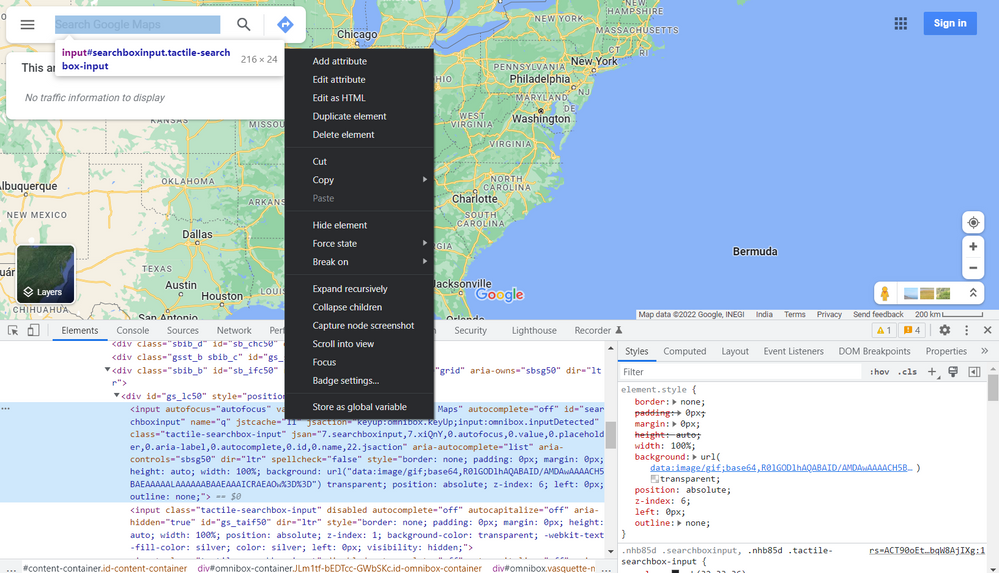
- In Chrome DevTools, ensure the correct element is selected in the Elements panel.
- Right‑click that element in the DOM tree.
- Choose Copy → Copy JS path (or copy a stable CSS selector, if preferred).
You’ll use this selector in the JavaScript events within your Dynatrace browser clickpath monitor.
JavaScript event 1 – Enter text and trigger the autocomplete dropdown
-
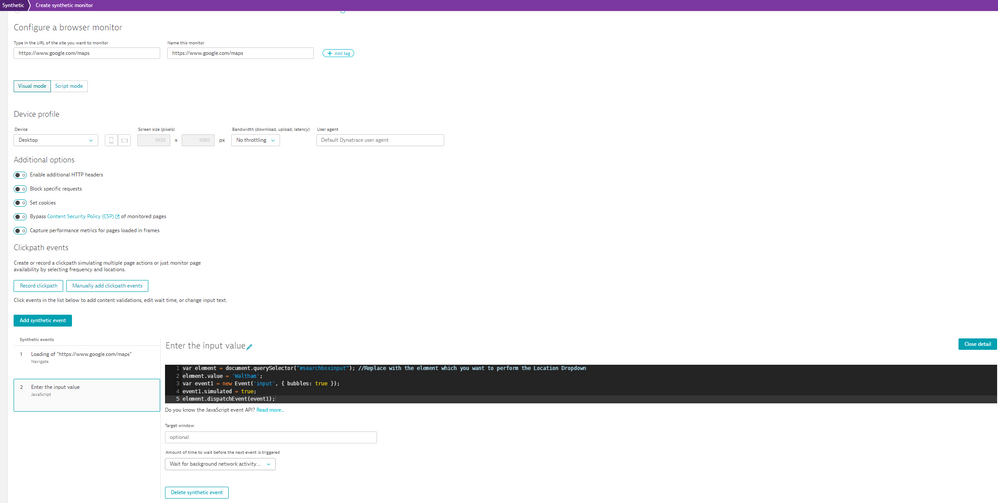
Create a JavaScript Event step in your browser clickpath synthetic monitor and paste the selector you copied into the
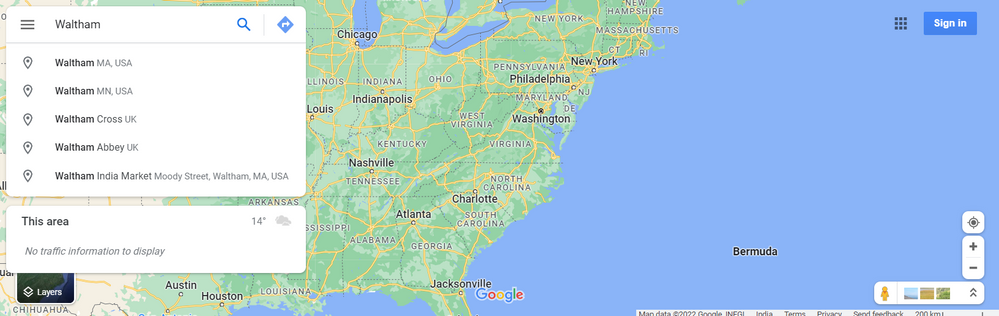
querySelectorcall.var element = document.querySelector("#searchboxinput"); //Replace with the element which you want to perform the Location Dropdown element.value = 'Waltham'; var event1 = new Event('input', { bubbles: true }); event1.simulated = true; element.dispatchEvent(event1);What this does:element.valuesets the text in the input (e.g.,Waltham).- The
inputevent is dispatched so the application’s JavaScript thinks a real user typed the value, causing the autocomplete dropdown to appear.
You can adjust the value (e.g., city, address, or postcode) as needed for your test case.
JavaScript event 2 – Select the first location result from the dropdown
- Add another JavaScript Event step in the same browser clickpath monitor. Use the same selector to target the input element and then simulate key presses to select an option from the dropdown.
var element = document.querySelector("#searchboxinput"); //Replace with the element which you want to perform the Location Dropdown var evObj = document.createEvent('UIEvents'); evObj.initUIEvent('keydown', true, true, window, 1); evObj.keyCode = 40; setTimeout(function() { element.dispatchEvent(evObj); },1000); evObj.initUIEvent('keydown', true, true, window, 1); evObj.keyCode = 13; setTimeout(function() { element.dispatchEvent(evObj); },2000);What this does:- Simulates a Down Arrow key press (
keyCode = 40) to highlight the first autocomplete suggestion. - Simulates an Enter key press (
keyCode = 13) to select that suggestion. - Uses
setTimeoutto give the page time to:- Load the autocomplete suggestions.
- Apply the selection.
If your page is slower or faster, you can tweak the delays (1000 ms / 2000 ms) to make the interaction more reliable. - Simulates a Down Arrow key press (
What's Next
Practical tips and troubleshooting
- Selector stability: If the JS path is too fragile (e.g., dynamic IDs), consider using a more stable selector (like a CSS selector based on class/attributes) when calling
document.querySelector. - Multiple locations: For different test locations, duplicate the same JavaScript event and just change
element.value. - Timing issues: If the dropdown doesn’t open or the wrong item is selected:
- Increase the
setTimeoutdurations. - Confirm that the location field responds to
inputevents (some frameworks might requirechangeor other custom events too).
- Increase the
- Validation: Use screenshots and step‑level validation in the browser monitor to confirm the correct location is selected.
Create a Support ticket/ chat
If the browser clickpath monitor isn't able to select the location using the steps in this guide, along with the troubleshooting tips, please open a chat, or create a support ticket and provide a link to the monitor you're updating and the configuration steps you have already completed.
Related reading
Labels:
Comments


Hello,
many thanks for sharing this. For me it was necessary to change step 2 to the following:
In addition I need a wait for 2 seconds for next step between step 1 (enter Location) and step 2 (select from maps response).
// Keydown Arrow Down nach 1 Sekunde

var element = document.querySelector("#input_YOUR_Selector");

setTimeout(() => {
    const ev1 = new KeyboardEvent('keydown', {
        bubbles: true,
        cancelable: true,
        key: 'ArrowDown',
        code: 'ArrowDown',
        keyCode: 40, // einige Browser nutzen das noch
        which: 40
    });
    element.dispatchEvent(ev1);
}, 1000);

// Keydown Enter nach 2 Sekunden
setTimeout(() => {
    const ev2 = new KeyboardEvent('keydown', {
        bubbles: true,
        cancelable: true,
        key: 'Enter',
        code: 'Enter',
        keyCode: 13,
        which: 13
    });
    element.dispatchEvent(ev2);
}, 2000);
Cheers,
Tom

